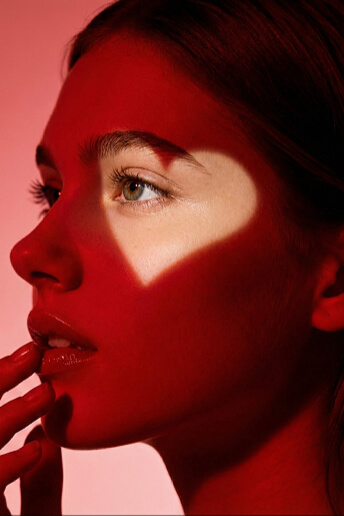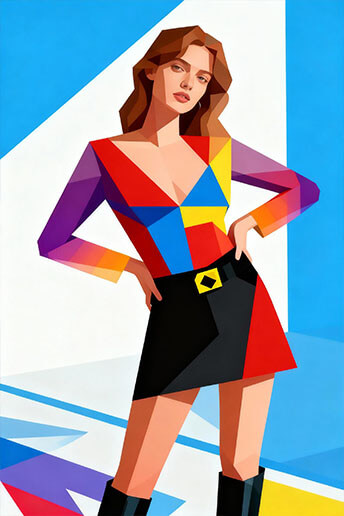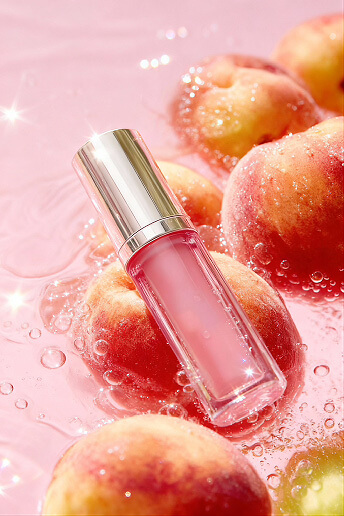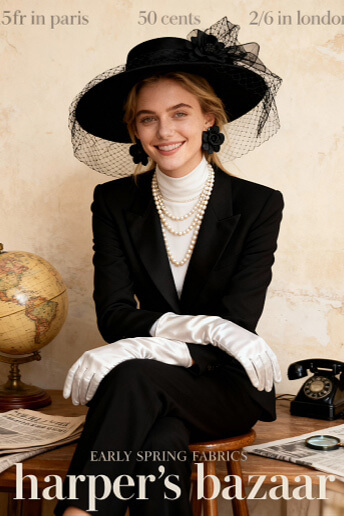

How to Use GPT Image 2.0: Easy Step-by-Step Guide

Written by Andrew Handley Last updated on

how to use gpt image 2.0

Home > AI Tips > How to Use GPT Image 2.0: Easy Step-by-Step Guide

2179 views , 4 mins read

If you're trying to figure out how to use GPT Image 2.0 to create or edit images, you're not alone. As one of the newest AI image models released in 2026, it's quickly becoming a practical tool for creators, marketers, and everyday users who need fast, usable visuals.

In this guide, I will show you how to use GPT Image 2.0 step by step, what it is good at, where it fits in a real workflow, and how people actually use it for blog images, marketing visuals, product mockups, and image edits. Whether you are a creator, a marketer, or just exploring GPT-2 image generation upgrades, this will help you get started with less friction.


What Is GPT Image 2.0

GPT Image 2.0 (also known as GPT Image 2 or gpt-image-2) is an AI model that generates and edits images from text instructions. In simple terms, you describe what you need, and the model creates a visual that matches your idea.

What makes it useful is not only image generation, but also its ability to support practical tasks. That includes clean blog headers, product-style visuals, simple layouts, mockups, and image edits that save time in day-to-day content work.

If you are comparing GPT Image 2.0 with older image models, the biggest difference is how usable the results feel for real work. A direct comparison between GPT Image 2 and Nano Banana 2 can help clarify their differences in practical usage. Instead of making images that only look artistic, it is better suited for visuals that have a job to do.


How to Use GPT Image 2.0

Getting started is straightforward.

STEP1 Choose Where to Use GPT Image 2.0

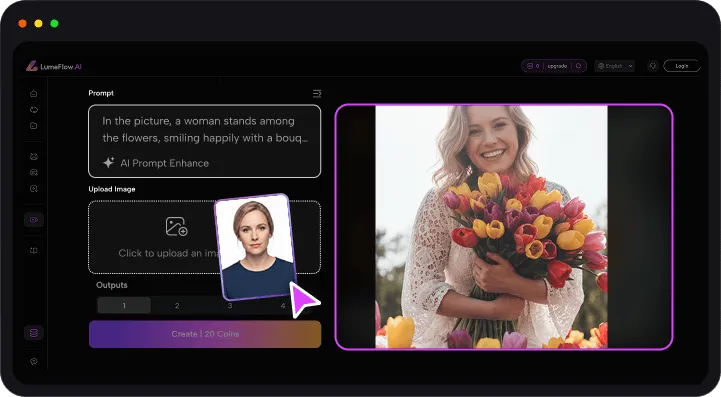
You can use GPT Image 2.0 in ChatGPT if image generation is available in your account, or through the OpenAI API if you are building a workflow around it. Some third-party tools also make the process easier to manage. LumeFlow AI is one example of a more visual, beginner-friendly workflow.

lumeflow ai recommendWhy Choose LumeFlow AI

  • 👉 Start free with limited credits — LumeFlow AI offers free coins so you can try image and video generation before upgrading.
  • 👉 Conversational AI Agent workflow — The built-in AI Agent helps you create images through chat-based guidance, making the process more intuitive and beginner-friendly.
  • 👉 Multi-model image generation in one place — Access GPT Image 2, Nano Banana 2, Flux and more in a single workflow for faster creative comparisons.
  • 👉 One platform for image-to-video creation — Turn generated images into videos instantly without switching tools, keeping your creative process fully integrated.
Start Free Trial lumeflow ai reviews
lumeflow ai features overview

STEP2 Decide Between Generating or Editing an Image

This matters more than most people think. If you need something from scratch, start with a clear description of the image. If you already have an image and want to improve it, upload it and describe the changes you want.

STEP3 Describe the Image Clearly

The best results usually come from one clear task at a time. Try to define the subject, the setting, and the purpose of the image before asking for too many extra details. Using structured GPT Image 2 prompts can significantly improve consistency and reduce trial-and-error during generation.

STEP4 Refine the Result Step by Step

Most people do not get the final version on the first try. That is normal. Use small changes to improve lighting, composition, background, or layout until the image fits the use case.

Get Started Now

Common GPT Image 2.0 Mistakes and Fixes

Even though GPT Image 2.0 is powerful, there are a few common issues that trip people up.

1 Overloading the Prompt

One common mistake is giving GPT Image 2.0 too many conflicting ideas in one prompt. To fix it you should start with a clean base prompt and refining with small follow-ups instead of trying to solve everything at once.

2 Messy or Incorrect Text in Images

Another issue is weak text rendering. The fix is simple: keep the text short, put the exact wording in the prompt, and use high quality for dense layouts like posters, menus, and infographics.

3 Bad Composition or Awkward Layout

Layout drift is another frustration. If the subject keeps moving or the spacing feels off, call out the framing directly: centered, close-up, wide shot, top-down, left-aligned, or with negative space.

4 Inconsistent Results Across Images

The last big mistake is expecting perfect consistency across every variation. The results can be better if you re-state the important details each time and treat refinement as part of the workflow, not a failure.


Real Use Examples of GPT Image 2.0

GPT Image 2.0 works best when you focus on what the image needs to achieve, not just how it looks. In real workflows, it is often used to create visuals quickly for content, marketing, and product ideas.

Here are some of the most practical ways people use it.

1 YouTube Thumbnail

Creators use GPT Image 2.0 to build thumbnails that grab attention fast. A good thumbnail usually needs strong contrast, a clear subject, and space for text. This is especially helpful when you want to test multiple thumbnail styles quickly.

This is typically done by describing a close-up subject, bold lighting, and leaving empty space for title placement.

2 Blog Hero Image

Bloggers and SEO writers often need featured images that feel clean and professional. GPT Image 2.0 is useful here because it can create visuals that match the topic of the article without relying on generic stock photos.

This is typically done by describing a simple scene, soft lighting, and a layout that leaves room for headline text.

3 Ecommerce Product Shot

For product pages and ads, the model can generate simple, polished product-style images that feel close to studio photography. This helps when you want early visuals for a product concept, landing page, or campaign draft.

This is typically done by describing a single product, a clean background, and controlled lighting with no distractions.

4 Mobile App UI Mockup

Designers and founders can use GPT Image 2.0 to visualize app ideas before full development. It is helpful for presenting a fitness app, dashboard, onboarding screen, or other interface idea in a fast, visual way.

This is typically done by describing a realistic interface layout, clear structure, and a clean screen composition.

5 Event Poster

If you are making a meetup flyer, startup event background, or social campaign visual, GPT Image 2.0 can generate a strong base image that gives your text more room to work.

This is typically done by describing a background style, color theme, and leaving space for text elements.

6 Real Estate Listing Image

Agents and developers can use it for concept staging or polished interior visuals. It is especially useful when you need a bright, clean room image for a presentation or listing-style preview.

This is typically done by describing natural lighting, wide space, and a balanced room layout.

7 Social Media Ad Creative

Marketers often need a quick visual for Instagram, Facebook, or TikTok. GPT Image 2.0 can help generate lifestyle-style imagery that supports the product or message without a full design process.

This is typically done by describing a lifestyle scene, a clear focal point, and minimal background distractions.

8 Before-and-After Edit

Beyond creating new images, it also works well for editing existing ones. Common edits include cleaning up a background, improving light, changing a scene detail, or making an image more polished for marketing use.

This is typically done by describing what should be kept, what should be removed, and what should be improved.
Try GPT Image 2.0 Now

FAQs About GPT Image 2.0

What is the GPT Image 2.0 release date?

GPT Image 2.0 was released in April 2026 as part of OpenAI's newer multimodal updates. It's one of the latest image models available in the current API and ChatGPT image tools.

Is GPT Image 2.0 better than older image models?

Yes, especially for practical use. It handles layout, text rendering, and structured visuals much better than earlier models, making it more reliable for things like ads, product images, and UI mockups—not just artistic outputs.

How to access GPT Image 2.0?

You can access it directly through ChatGPT's image generation feature or via the OpenAI API. Some third-party platforms such as LumeFlow AI also integrate it into more user-friendly workflows if you prefer a no-code setup.

Does GPT Image 2.0 support image editing?

Yes, it supports both generating new images and editing existing ones. You can upload an image and describe changes like removing objects, adjusting lighting, or modifying the background.

How long does GPT Image 2.0 take to generate an image?

Most images generate within a few seconds to about a minute, depending on prompt complexity and quality settings. More detailed or high-quality outputs may take slightly longer.


Final Thoughts

GPT Image 2.0 is easiest to use when you treat it like a visual workflow tool rather than just an AI generator. Start with one clear subject, add style and layout only when they matter, and keep refining until the image matches the job. That approach works whether you are making blog graphics, ads, product shots, or edited visuals for a client deck.

If you want a more visual and less technical way to work, tools like LumeFlow AI can make the process feel more streamlined, especially when managing multiple visuals or combining image and video generation. The main advantage still comes from knowing what you want the image to do, then using the model to build it clearly and efficiently.

Start Creating Images Upgrade Your Plan
lumeflow ai blogs

Article by Andrew Handley

Article by Andrew Handley

Andrew Handley is a digital media strategist and AI content creation expert with over 8 years of experience in video marketing, SEO, and SaaS growth. As a core contributor at LumeFlow AI, he specializes in making complex AI technologies accessible and practical for creators, marketers, and brands. Through his in-depth articles, Alex helps readers navigate the fast-evolving landscape of AI-powered storytelling and visual communication.

More Topics You May Like

How to Use GPT Image 2.0: Easy Step-by-Step Guide

Learn how to use GPT Image 2.0 step by step to create and edit AI images easily with real workflows, examples, and ChatGPT or API use cases.

Posted by  Andrew Handley  |   2026-04-27

GPT Image 2 vs Nano Banana 2: Which Model Fits Your Workflow?

Compare GPT Image 2 vs Nano Banana 2 in real-world tests. See image quality, text accuracy, and which AI model actually performs better for creators.

Posted by  Andrew Handley  |   2026-04-30

Seedance 2.0 Prompt Guide: AI Video Prompts, Examples & Tips

Learn how to create better Seedance 2.0 AI video prompts with real examples, practical tips, and clear step-by-step prompt breakdowns for creators.

Posted by  Andrew Handley  |   2026-04-27

Sora 2 Review 2026: Real Tests, Limits & Best Alternatives

Wondering if Sora 2 is worth it in 2026? We tested it — learn the strengths, privacy concerns, invite tips and the best Sora 2 alternatives.

Posted by  Andrew Handley  |   2026-03-31

Best Sora Alternatives 2026: Ranked AI Video Tools

Explore the best Sora alternatives in 2026 with a ranked comparison of AI video tools including Runway, Kling, Pika, LumeFlow AI, and Firefly.

Posted by  Andrew Handley  |   2026-04-20

Happy Horse 1.0 vs Seedance 2.0: AI Video Generators Compared

Compare Happy Horse 1.0 vs Seedance 2.0 in 2026. Explore features, access, and key differences between open-source and multimodal AI video generation tools.

Posted by  Andrew Handley  |   2026-04-16