



Google Gemini Omni Video Generator
Google's Most Advanced Multimodal Model
 (3529+ Reviews)
  LumeFlow 3.0 LumeFlow 3.0
  kling 3.0
  Seedance 2.0 Mini Seedance 2.0
  Happy Horse 1.0 Happy Horse 1.1
  Gemini Omni
  Wan 2.5
  Pixverse V5.5 Wan 2.6
  Hailuo 2.3 Hailuo 2.3 Fast kling 2.5
  Sora 2 Sora 2 Pro
  Vidu Q2 Turbo
  Google Veo 3.1 Google Veo 3.1 Fast Pixverse V5 Hailuo 02 Vidu Q1 kling 1.6
 Click to upload an image
 Upload JPG/PNG/WEBP images up to 10MB, with a minimum width/height of 300px.
LumeFlow 3.0 Happy Horse 1.0 LumeFlow 3.0 kling 3.0 Wan 2.5 Pixverse V5.5 Wan 2.6 Hailuo 2.3 kling 2.5 Sora 2 Sora 2 Pro Vidu Q2 Google Veo 3.1 Google Veo 3.1 Fast Pixverse V5 Hailuo 02 Vidu Q1 kling 1.6 LumeFlow 2.0 LumeFlow 2.0 Vidu Q2 Turbo  Click to upload a video
 Upload mp4 files up to 50MB with max resolution of 1920px and max time of 30s
Generated by Gemini Omni Model on LumeFlow AI
Real outputs from LumeFlow AI. Each video starts with a text prompt or reference image — the gemini omni model handles the rest, maintaining character consistency, realistic physics, and coherent scenes across every frame.
4 Things Make Google Gemini Omni Model Better
Edit Videos Through Natural Conversation with Google Gemini Omni
You do not need to master editing software to produce professional videos.
The Google Gemini Omni model understands plain language commands. Describe your vision in simple terms. The model translates your words into precise video modifications — adjusting motion, refining scenes, shifting transitions — all without touching a single parameter. Complex edits become simple conversations.
The Google Gemini Omni model handles the technical execution. You keep the creative direction.
Generate Video with Talk!

Gemini Omni Applies Real-World Physics to Every Frame
AI-generated videos often look artificial because motion defies physics. Objects float without weight. Collisions lack impact. Light behaves inconsistently.
The Google Gemini Omni model solves this by applying genuine physical logic across every frame. When an object falls, it accelerates at the correct rate. When two surfaces collide, the impact follows realistic momentum. When light enters a scene, shadows fall in the right direction. The result is video that feels authentic rather than generated. Viewers do not notice physics. They notice when it is missing. The Google Gemini Omni model ensures they never have to.
See Real Physics in ActionMultiple Input References Simultaneously with Gemini Omni
Most AI video tools accept one input type at a time. You provide an image. Or a text prompt. Rarely both.
The Google Gemini Omni model accepts multiple inputs at the same time and uses all of them to generate the output. Upload a character photo and a motion reference video. Provide a style image alongside a text description. Feed the model a reference scene and a dialogue transcript.
The Google Gemini Omni model considers every input simultaneously and produces a result that honors all of them. You no longer need to choose between input types. With the Google Gemini Omni model, you use all of them.
Try Gemini Omni Free

Consistent Characters Across Every Scene
Generate AI videos where characters remain recognizable from one scene to the next. Gemini Omni helps preserve facial details, clothing, visual style, and environment consistency across multiple shots, reducing character drift and continuity errors that often appear in AI-generated videos. This makes it easier to create storytelling videos, marketing content, and social media clips with a cohesive look and a more professional viewing experience.
Create Consistent AI VideosComparision Between Gemini Omni and Other Models
-
FeaturesCharacter consistencyMore complicated prompts understandingMore coherent video anglesPreserves scene continuity and detailsHandles complex movementsFewer mismatches
-
Gemini Omni

-
OthersOften inconsistenMiss instructionsBetter at single clipsDetails may driftSimplified or inaccurate motionResults maybe unstable

How to Acess Gemini Omni in LumeFlow AI?
Step 1: Choose Text-to-Video or Image-to-Video
Create a video from a text prompt or transform a static image into motion. Both options are available directly inside LumeFlow AI.
Step 2. Select Gemini Omni and Write Your Prompt
Describe your characters, scenes, actions, and camera movements, then choose Gemini Omni to generate videos with stronger prompt accuracy, scene consistency, and multi-shot coherence.
Step 3. Generate AI Videos in Seconds
Review your generated video, refine your prompt if needed, and export the final result for social media content, marketing campaigns, storytelling videos, or creative projects.


Real-Time AI Video Generation Powered by Gemini Omni
See how creators perform with Gemini Omni

How Does LumeFlow AI Help you in Other Ways?
All You Need to Know About Gemini Omni!
-
1. What is the relationship between Gemini Omni, Google Flow, and Veo?
Gemini Omni is the AI model used for generating video content, while Veo is another video generation model developed by Google that focuses on high-quality text-to-video generation. Google Flow is the broader creative workflow environment that integrates different Google AI models for content creation.
In LumeFlow, Gemini Omni is integrated as one of the available models for video generation, allowing users to create consistent multi-scene videos directly without needing to switch between different Google tools or workflows. This means LumeFlow AI acts as a unified interface where you can use Gemini Omni for text-to-video and image-to-video generation in a simplified workflow.
-
2. Does Gemini Omni support both text-to-video and image-to-video generation?
Yes. In LumeFlow, Gemini Omni supports both text-to-video and image-to-video workflows. You can either describe a scene in text or upload an image as a starting frame, and the model will generate a coherent video while preserving key visual elements.
-
3. Why do characters sometimes change in AI-generated videos?
Character changes usually happen because many AI video models generate frames independently without strong identity consistency across scenes. This can lead to variations in facial features, clothing, or lighting. Gemini Omni is designed to reduce this issue by maintaining shared context across multiple shots.
-
4. How does Gemini Omni maintain character and scene consistency?
Gemini Omni keeps consistency by preserving key visual attributes such as facial structure, clothing style, and scene context throughout the generation process. It also uses stronger cross-frame understanding, which helps ensure that changes in camera angle or environment do not break character identity.
-
5. How should I write prompts for Gemini Omni to get better video results?
To get better results with Gemini Omni in LumeFlow, your prompts should focus on physical world behavior and scene-level details, such as actions, movement, environment, lighting, and spatial relationships. The model performs better when it can understand how objects and characters exist and interact in real-world logic.
Instead of using only abstract style terms, try describing concrete and observable scenes.
For example:
Instead of: “a cinematic street scene”
Use: “a person walking through a busy street, cars passing by slowly, sunlight shifting through tall buildings, handheld camera movement following the character”
This type of prompt helps Gemini Omni maintain character consistency, motion realism, and scene continuity across multiple shots.
Gemini Omni Guides, Tips & AI Video Insights
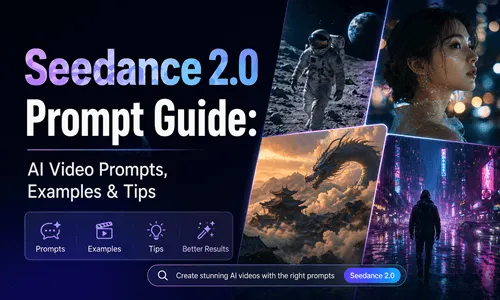
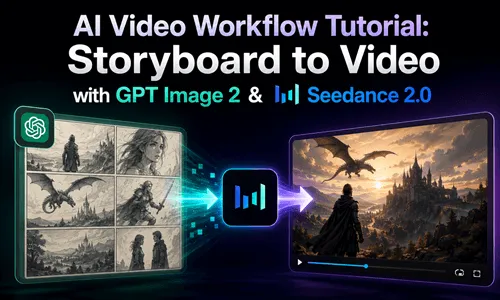
Explore practical guides, prompt tips, and model insights for AI video generation. Learn how Gemini Omni compares with other video models, discover how to improve prompt quality, and stay updated with the latest workflows for creating consistent, multi-scene AI videos inside LumeFlow.

Extend Your AI Video Creation Beyond Gemini Omni
Go beyond multi-scene video generation with Gemini Omni. Enhance your workflow by extending into video expansion, image generation, and AI agent automation for video generation inside LumeFlow AI, allowing you to create, refine, and scale content across different AI capabilities in one place.


