







MiniMax H3 AI Video Generator
2K Video. Native Stereo Sound. More Creative.
 Explore AI Video Creation
  LumeFlow 3.0 LumeFlow 3.0
  kling 3.0
  Seedance 2.0 Mini Seedance 2.0
  Happy Horse 1.0 Happy Horse 1.1
  Gemini Omni
  Wan 2.5
  Pixverse V5.5 Wan 2.6
  Hailuo 2.3 Hailuo 2.3 Fast kling 2.5
  Sora 2 Sora 2 Pro
  Vidu Q2 Turbo
  Google Veo 3.1 Google Veo 3.1 Fast Pixverse V5 Hailuo 02 Vidu Q1 kling 1.6
 Click to upload an image
 Upload JPG/PNG/WEBP images up to 10MB, with a minimum width/height of 300px.
LumeFlow 3.0 Happy Horse 1.0 LumeFlow 3.0 kling 3.0 Wan 2.5 Pixverse V5.5 Wan 2.6 Hailuo 2.3 kling 2.5 Sora 2 Sora 2 Pro Vidu Q2 Google Veo 3.1 Google Veo 3.1 Fast Pixverse V5 Hailuo 02 Vidu Q1 kling 1.6 LumeFlow 2.0 LumeFlow 2.0 Vidu Q2 Turbo  Click to upload a video
 Upload mp4 files up to 50MB with max resolution of 1920px and max time of 30s
Find Inspiration for Your Next AI Video
Explore LumeFlow's video gallery for fresh ideas, from playful effects to dramatic action. Discover a look, imagine your own scene, and use it as a starting point for your next creative project.
Why Choose MiniMax H3 for AI Video Creation?
Multimodal References for a Clearer Creative Brief
MiniMax H3 understands text, images, video, and audio together, helping you explain both what to create and how it should look and sound.
Use an image to guide a subject's appearance, a video to reference movement, and audio to shape the sound. Tell H3 how each reference should contribute to the final scene.
Its omni-reference mode supports up to 12 files in total, including up to 9 images, 3 video clips, and 3 audio clips within that combined limit.
Find Creative Inspiration

Direct the Scene with Words and References
Guide MiniMax H3 with clear instructions for the subject, action, lighting, and camera movement. Give your creative brief the detail it deserves.
Build a product reveal, plan a character moment, or explore a new visual style. H3 supports video motion transfer and natural-language editing, so you can use references to communicate movement and describe the changes you want to make.
Explore Video CreationNative Stereo Audio and Detailed 2K Output
MiniMax H3 generates video and stereo audio together, including dialogue, sound effects, and music. Describe the soundscape alongside the visual action to guide the result.
Create clips from 4 to 15 seconds long, with output up to 2K. Give product details, scene textures, and on-screen text more room to stand out.
From a vertical social clip to a widescreen concept, choose a format that fits your story. Available resolutions, reference inputs, and audio controls depend on the generation mode and platform.
Explore Creative Ideas
How to Get Started with MiniMax H3
Step 1: Choose Your Starting Point
Start with a text prompt or an image. Decide what the viewer should see, what should move, and how the scene should sound.
Step 2: Choose MiniMax H3
Choose MiniMax H3 wherever it is available in your video workspace, then set the duration and format using the options provided.
Step 3: Describe, Generate, and Refine
Add your prompt and supported references. Explain the action, camera movement, and audio, then generate a clip and refine your instructions after reviewing it.


Explore the LumeFlow Creator Community
Discover scenes and styles to inspire your next project.

MiniMax H3: Frequently Asked Questions
-
1. What is MiniMax H3?
MiniMax H3 is a multimodal video generation model developed by MiniMax.
It combines text, image, video, and audio context to guide video creation.
It supports clips from 4 to 15 seconds long, with output resolutions up to 2K.
Native stereo audio lets you generate sound alongside the visuals.
Reference-based generation and editing help you guide subjects, movement, and the overall scene.
Use it to explore product videos, animated concepts, brand visuals, and short-form stories.
-
2. What can I use as a reference in MiniMax H3?
In omni-reference mode, H3 supports up to 12 reference files in total: up to 9 images, 3 video clips, and 3 audio clips, subject to that shared limit.
Each video or audio clip must be 2 to 15 seconds long. Video references have a combined limit of 15 seconds, and audio references have a separate combined limit of 15 seconds.
Audio references must accompany an image or video; they cannot be the sole input. Describe the role of each reference so H3 can interpret your intended result.
-
3. Can MiniMax H3 generate videos from text or images?
Yes. H3 supports text-to-video generation as well as image-guided creation. Its frame-based mode accepts a first frame, a last frame, or both, giving you a way to guide how a clip begins and ends. The controls available depend on the platform you use.
-
4. What makes MiniMax H3 useful for creative work?
Three capabilities make H3 worth exploring:
(1) Multimodal context: combine references to communicate appearance, motion, and sound in one creative brief.
(2) Joint audio-video generation: create visuals and a native stereo soundtrack together.
(3) Flexible direction: use natural-language instructions and reference-based editing to explore variations on a scene.
-
5. Does MiniMax H3 generate dialogue and music?
Yes. H3 can generate dialogue, sound effects, and music alongside video, with native stereo output. Include the spoken words, ambient sounds, or musical mood you want in your prompt, then review the generated result for timing and clarity.
-
6. What types of videos can I create with MiniMax H3?
Explore product showcases, advertising concepts, animated posters, cinematic scenes, and social media clips. Start with a focused idea, such as a close-up product reveal or a short character interaction, and build your prompt around the moment that matters.
-
7. Can MiniMax H3 edit an existing video?
Yes. H3 supports reference-based video editing and motion transfer. Provide source footage and explain what you want to change or carry into a new scene. Be specific about the subject, movement, and sound, then review whether the result matches your brief.
-
8. How can I write a better MiniMax H3 prompt?
Describe the subject, setting, action, camera movement, and sound. When using references, explain what to take from each one. For example: use the product in the image, reveal it with a slow camera push-in, and add soft ambient music. Keep the action manageable for the clip length and refine one detail at a time.
Build Your AI Video Skills with LumeFlow
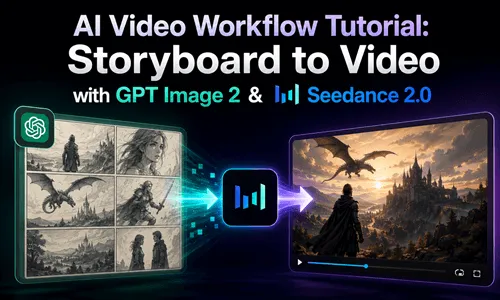
Explore guides to prompting, character consistency, and creative workflows. These articles cover a range of AI tools, including Seedance, and offer ideas you can adapt when planning your next MiniMax H3 project.


Build Your Next Video Workflow with LumeFlow
Start with an idea, bring an image into motion, or explore tools for developing a longer story. Discover LumeFlow's video workflows and choose the available model and features that fit your project.


